One Photoshop Mistake That’s Wasting Your Class Time
Apr 20, 2026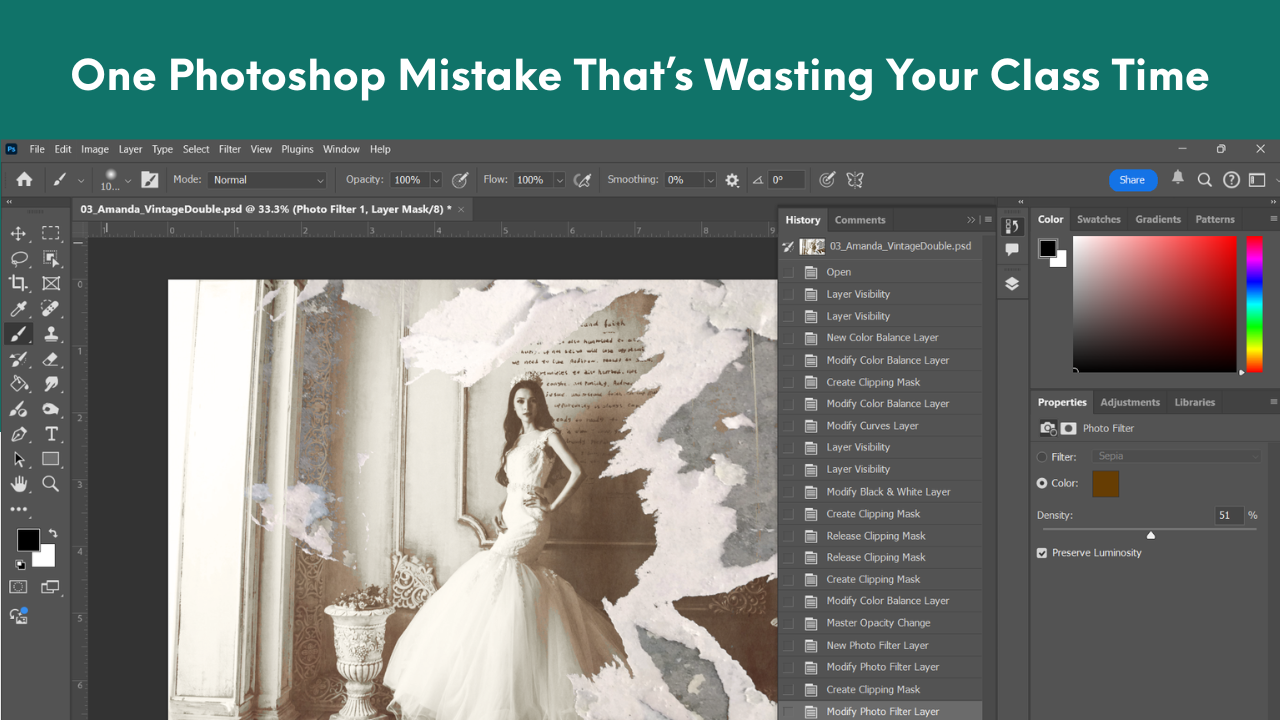
That frustrating feeling when you hear "I messed it up... I have to start over," or you go to check on a student who hasn't seemed to move in the last 20 minutes, but also doesn't seem to be doing anything and their response is... "I don't know what I did... but it's all gone."
Teaching Photoshop can be daunting and frustrating! Files get ruined, work disappears, software glitches, computer run out of memory, and suddenly you're spending more time troubleshooting than you are teaching.
Here's the thing - the issues aren't always user error or student problems, but a lot of the time they are actually issues with the workflow process.
And once you fix that, teaching Photoshop (or any Adobe Program) gets easier.

The Real Issue (And the Simple Fix)
Most students come in to Photoshop thinking that:
- Things automatically save
- They can endlessly "undo"
- They should erase mistakes
- It's the end of the world if they miss one step
They also don't usually know about layers or what it means to work non-destructively - but that's where you get a chance to step in and teach them how to use Photoshop like a Pro. It's also where things can go wrong, and go wrong quick.
When they come in to Photoshop, your students don't usually have any experience in the software and they are limited to their experiences using programs like Google Slides, Google Docs, Canva, and other online programs that have the features like endless undo, auto save, and the ability to erase or delete their mistakes easily.
But that's not how Photoshop works.
So here's where we shift:
Your students need to learn about non-destructive editing from day one.
Non-Destructive Editing and Why Undo Isn't Enough
A lot of your students will use CTRL+Z like it's their ultimate hack, but Photoshop only stores a limited number of steps - and each click is a step. They will quickly find that they cannot continue "going back" and may get frustrated. They also may "rage quit" and close out of a project only to find that their history of changes also goes away when they reopen it.
Cue the meltdown.
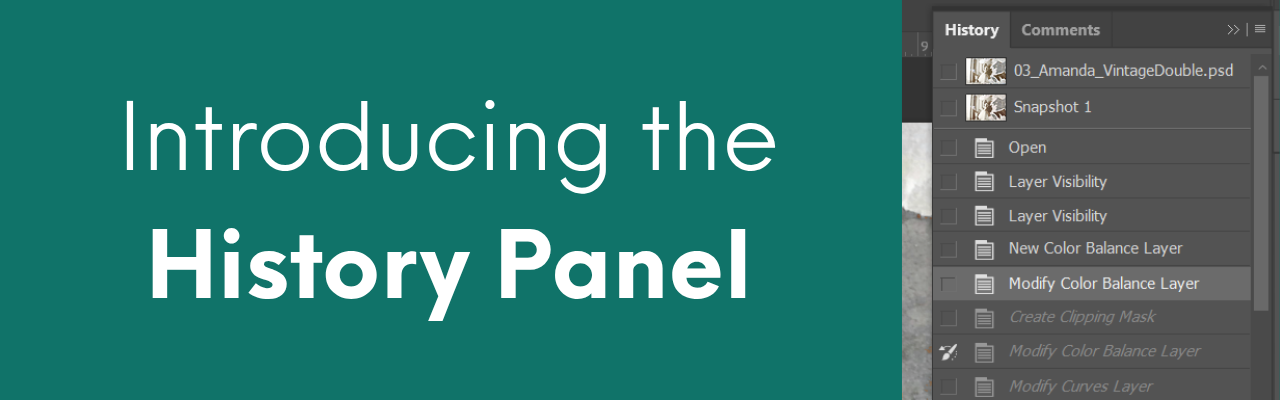
This is why I introduce the History Panel EARLY and refer to it often!
Free Lesson You Can Use Right Away
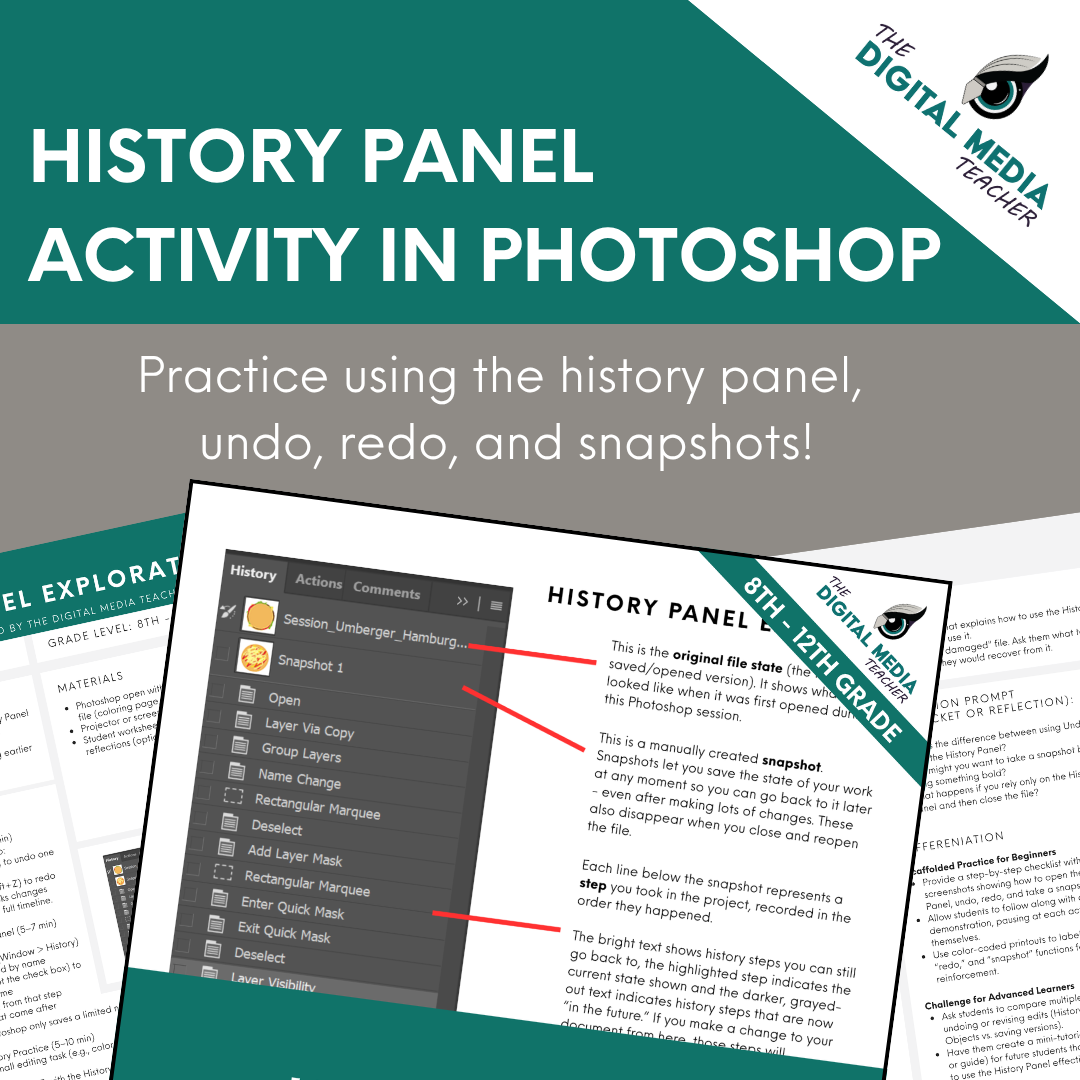
I've even created a lesson that I use with students SPECIFICALLY to go over the History Panel in Photoshop and how it works. If you want a simple way to reinforce this concept, click on the link below.
CLICK HERE to grab this FREE resource!
This lesson helps students:
- Understand how undo and redo actually work
- Navigate the History Panel step by step
- Take snapshots before trying something new
- Realize why saving layered files matters
It’s quick, easy to implement, and works with almost any beginner Photoshop project.
Easiest Way To Start Teaching Non-Destructive Editing In Your Classroom
Before jumping into photo editing, start with something simple, like coloring pages.
This allows students to:
- Practice layers without pressure
- Make mistakes safely
- Create new layers instead of erasing
- Build confidence early
Before my students ever edit their first photo, we complete at least 1 to 2 coloring pages, and trust me when I say it makes a huge difference in how they understand Photoshop!
Want to learn more about how I do this? Check out this Blog Post: Easiest Way To Start Teaching Non-Destructive Editing In Your Classroom (Coming Soon)
If You Want This Fully Built Out…
If you’re reading this and thinking:
“I just want this all organized and ready to go…”
That’s exactly why I built my Photoshop Curriculum.
Instead of piecing together lessons or guessing what to teach next, everything is:
- Backwards planned to align to National Media Art Standards
- Structured step by step
- Built for real classrooms
- Designed for both beginners and experienced teachers
- Focused on workflows that actually prevent frustration
- Engaging and fun for both you and your students!
I’m also working on something bigger behind the scenes, a space where you can access all of my lessons, projects, and curriculum in one place along with tutorial videos, community support and more.
If that sounds like something you’ve been needing, check out this page to learn more and sign up for the early access option!